
On this page
If you have Frontier internet and you’re trying to use your home’s coax to improve WiFi coverage, MoCA is usually the cleanest “wired backhaul” option you can do without running new Ethernet. This guide walks you through what to check on Frontier installs (fiber ONT vs cable/coax), how to avoid the most common MoCA pitfalls, and the simplest working wiring patterns.
Quick answer: separate WAN from LAN
Do not assume fiber makes the coax unused. Frontier can use coax for the internet connection between the ONT and router (MoCA WAN), as well as for a home network (MoCA LAN). Frontier’s Sagemcom installation instructions explicitly identify a MoCA WAN/LAN port alongside separate Ethernet WAN and LAN ports.
- ONT directly to router WAN by Ethernet, with a separate unused coax network: connect a LAN-side MoCA adapter to the router’s LAN port, then a second adapter in the remote room.
- Coax or a Frontier adapter is part of the ONT-to-router connection, or coax also serves TV: leave that working service path intact. Ask Frontier to confirm the adapter modes and whether a separate LAN MoCA network can share that wiring before adding adapters or filters. An Ethernet plug at the router alone is not proof: trace the cable back to the ONT or adapter.
- DSL service: do not treat DSL as cable internet over coax. Identify the actual service connection and the role of any coax separately.
Before you start
Identify the ONT, router WAN connection, router LAN ports, existing adapters, and every service on the coax. Do not change provider adapter switches or insert a filter into the WAN path based on a generic diagram. If the wiring is unclear, keep the existing service working and confirm it with Frontier first.
MoCA basics (in one minute)
- MoCA adapters use coax as a high-speed link and present it as Ethernet.
- You need at least two MoCA nodes to form a link (router side + remote room).
- Most homes already have a coax “tree” via a splitter; MoCA rides that tree.
If you want the full conceptual overview first, read What is MoCA?
Recommended wiring patterns (Frontier fiber is the common win)
Pattern A: a separate LAN-side coax network
Use this pattern only after confirming the coax is available for LAN backhaul; it is not an ONT-to-router wiring diagram.
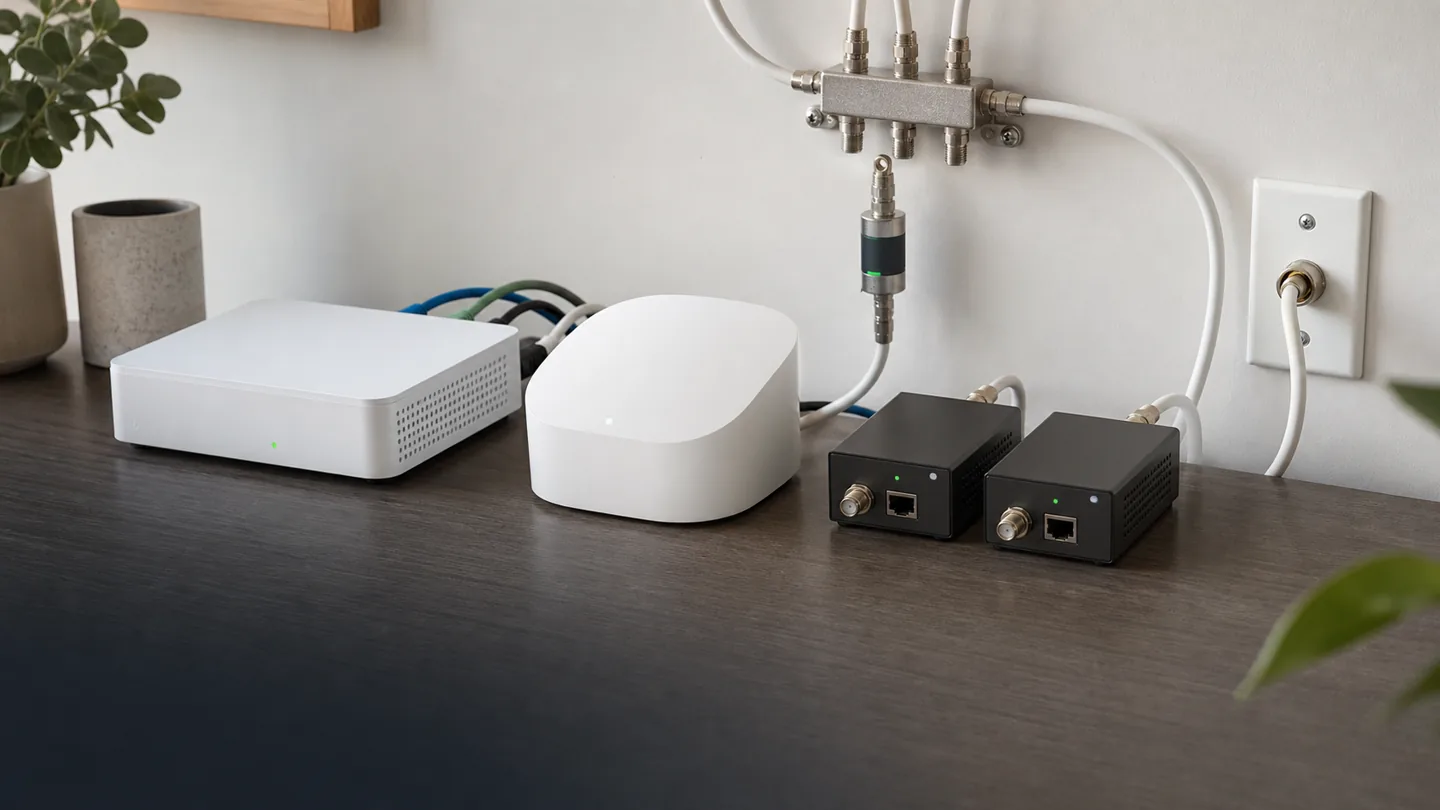
- At the router: connect Ethernet from the router LAN to MoCA Adapter #1.
- Connect Adapter #1’s coax port to a nearby coax wall jack.
- In the remote room: connect the coax wall jack to MoCA Adapter #2.
- Run Ethernet from Adapter #2 to your mesh node, PC, or a small switch.
This is the usual “fix dead zones without running Ethernet” setup.
Pattern B: MoCA backhaul for mesh WiFi nodes
If you’re using mesh WiFi (including Frontier-provided Eero), MoCA can act as the wired backhaul between nodes. Connect each remote mesh node to Ethernet coming out of a MoCA adapter.
More detail here: MoCA for mesh WiFi backhaul and wired backhaul for mesh WiFi.
If your specific goal is a Frontier-provided Eero node in a weak room, use the companion decision path: Frontier Eero and MoCA for dead zones.
The splitter and filter checklist (this is where installs fail)
- Use splitters explicitly specified for MoCA and your adapters’ operating band. A high maximum frequency alone, such as a 2400 MHz satellite rating, does not establish MoCA suitability. goCoax’s installation notes require MoCA-capable splitters passing 1125–1675 MHz for its adapters and warn against sharing standard MoCA with satellite TV.
- Avoid unnecessary splitters. Every split adds loss. If you can simplify the coax tree, do it.
- PoE (Point-of-Entry) MoCA filter: keep LAN MoCA contained at a verified coax boundary when required by the equipment/service layout. Do not put a blocking filter between intended MoCA peers or on an unverified Frontier WAN path. An isolated room-to-room coax run is not the same layout as a cable-provider entry splitter.
- Amplifiers: many cable amps block MoCA. If you have an amp, you may need a MoCA-bypass or a MoCA-compatible amp.
If you hit issues, this guide helps: MoCA troubleshooting.
Frontier + Eero specifics (what to expect)
- Assume you will use external MoCA adapters (one at the main Eero/router location, plus one per remote coax location).
- If your Eero node has only one free Ethernet port, you may need a small unmanaged switch to feed multiple devices at that location.
- After connecting MoCA, confirm each mesh node reports “wired” backhaul (the wording differs by app).
Step-by-step setup (practical, minimal moving parts)
- Map your coax: identify which rooms you want online and where the central splitter lives.
- Replace the main splitter if needed with a MoCA-rated model.
- Confirm the filter plan for this coax layout; install only where it contains LAN MoCA without blocking intended peers or existing service.
- Install MoCA adapter at the router and verify link LEDs.
- Install MoCA adapter in the remote room and verify link LEDs.
- Speed test from a wired client on the remote adapter, then test WiFi from the nearby mesh node/AP.
How to tell if it’s working (and what “good” looks like)
- MoCA link light is solid on both adapters.
- Remote wired speed is consistent (not spiky or dropping to near-zero).
- Mesh nodes report “wired” (if applicable), and dead zones improve.
Common problems on Frontier installs
- No MoCA link: wrong coax run, disconnected splitter leg, old splitter, or an amplifier blocking MoCA.
- Works in one room but not another: rooms are on different coax trees, or there’s a hidden splitter/amp in between.
- Slow/flaky: non‑MoCA splitter, too many splits, loose F-connectors, or interference on shared coax; verify the topology before adding a filter.